I am loving your comments + emails about
the last tutorial + ideas about what you'd like to learn, so keep it coming, ok?
Today's tutorial was inspired by Rachel of
Maybe Matilda, who wanted to know how to add a background design to words.
I love art that has good words.
In this Gimp tutorial, you will learn how to:
Create a hi-res image suitable for printing
Add a background design as a new layer
Add text
Download + use special fonts
Change text font, size, and color
Upload to a file sharing site
Create a "click to download" link for your blog
Since we plan to print the image, we need to start with a high resolution.
Open Gimp and go to File > New.
Because we'll be printing the artwork, we'll set the resolution to 360 ppi (pixels per inch).
That way, the image will be nice and crisp when you print it.
When you're making an image for web display only, 72 ppi is all you need.
If you were to print out a 72 ppi image, it would look blurry.
Now you're ready to
open your background pattern.
Go to File > Open as Layers
and choose a pattern from your clip art stash.
I'm using some tasty chevron wallpaper from
Erin Bradley Designs.
Opening the wallpaper as a layer accomplishes 2 things:
1) It opens a copy of the wallpaper directly into your image-in-process so that you don't have to mess with copying + pasting.
2) Since it's a copy, the original file remains unaltered.
Once your wallpaper is open, go to Image > Fit Canvas to Layers.
This makes your workspace and your wallpaper the same size.
Now we're ready to add text.
First, select the text tool.
Second, double-click-hold-drag on your image to create a text box
(you can change its size and location later if you need to).
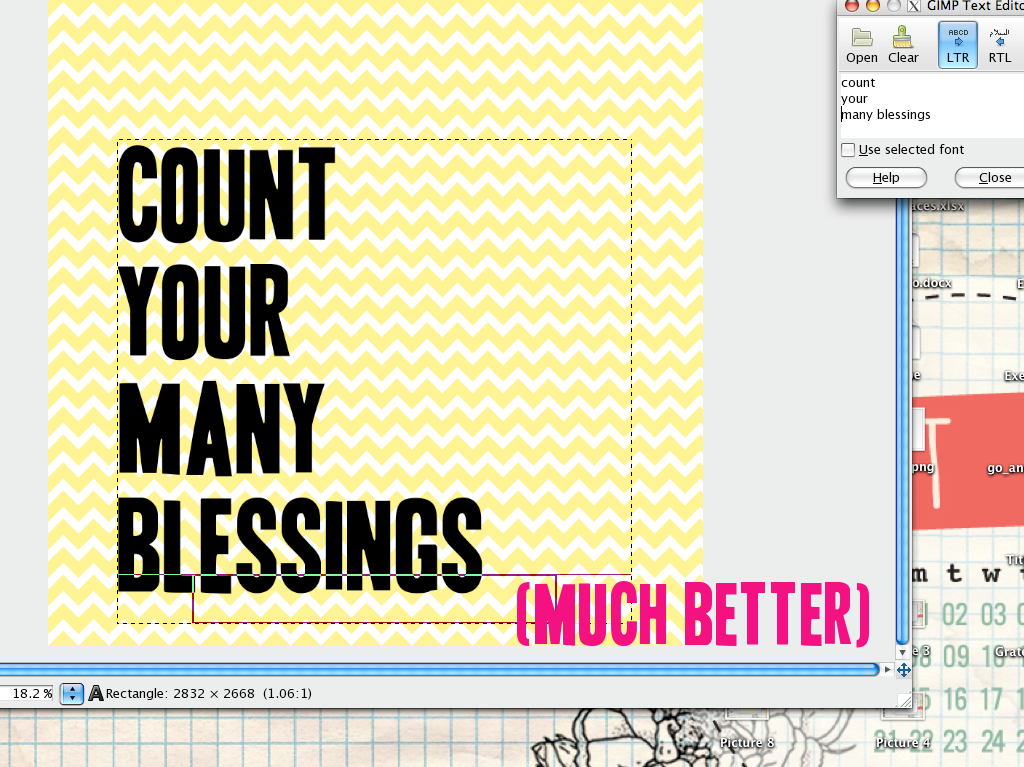
Third, type text into the Text Editor window.
You'll probably see right away that the text is teeeeeny tiny!
Before we make it bigger, let's change the font.
In the Toolbox, click on Font and select a font from the drop-down menu.
That font doesn't come with Gimp; you'll need to download and install it separately.
After downloading the font of your choice, add it to your computer's font library.
You'll need to save your work + restart Gimp in order to use your new font.
Let's change the text size.
Click the up or down arrows next to Size in the Toolbox.
You can also play with the justification; I'm going to make my text right-justified.
The text is now larger than the size of the text box.
To fix that, hover your cursor over the edge of the text box.
Drag the edge down until all of the text is visible.
Now for my favorite part. Time to change the text color!
Double-click the rectangular box underneath the Text menu in the Toolbox.
A separate Text Color window will pop up.
I'm feelin' a minty aqua for my text color today.
First, click on a spot on the vertical color spectrum bar that you like the look of.
Don't be shy! You're not painting the Taj Mahal.
Next, drag the crosshairs in the square color box on the left. Watch the color in the Current box (bottom left) until you see a color you like. Click OK.
Now we'll reposition the text.
Select the move tool.
Double-click and drag the text until you've got it where you want it.
All done! Save your work (I like to save one as an .xcf file and another copy as a .jpg).
Now we'll upload your new work of art to a file sharing site.
I've been using
Sendspace. It's simple. No frills.
Upload the file. When it's done, you'll see this screen giving you a few different links to choose from.
Click on the second link ("Download Link").
Next screen.
See the blue box towards the bottom that says "Click here to start download"?
Right-click that box and select Copy Link.
Now head over to Blogger (or your blog host of choice).
Just one step left: time to make the download link.
In my blog post, I've entered the text "Click here to download the print."
Highlight the word "here" and make a link.
When it asks for the link URL, right-click and hit Paste.
When your readers click on the word "here," your print will automatically download to
their computer -- without sending them away to a 3rd-party site. Win!
All done! You've got a kick-trash print, and you can share it, too!
{Click
here to download the print!}
Sources:
Chevron wallpaper via
Erin Bradley Designs
Chalkboard via
Kitschy Digitals
Fonts:
Cursive Standard,
Impact Label,
Vive la Rivoluzione